Inactive Section Feedback
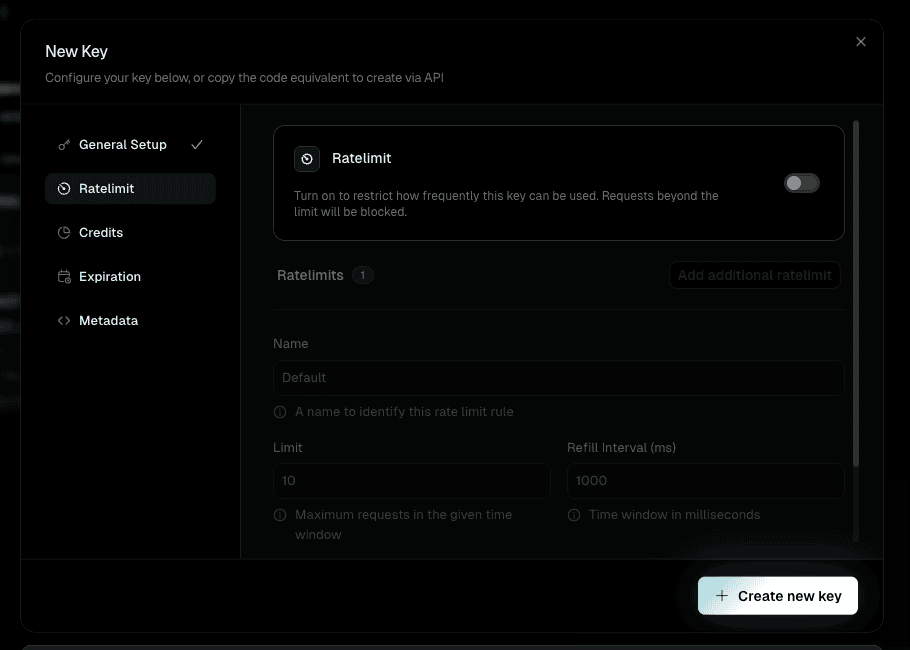
Toggle-gated sections in the Create Key form looked the same whether on or off. Clicking a disabled field did nothing. The fix guides your eye straight to the controlling toggle with an animated border glow.
The Create Key form has sections that are gated behind a toggle. But the enabled and disabled states were visually identical, and interacting with a disabled field produced no response.
- -No visual distinction between states: Enabled and disabled sections share the same styling. No opacity shift, no border change, nothing to indicate a section is inactive and waiting for a toggle.
- -Disabled cursor, no direction: The cursor does change to a disabled state on hover, so you know the field is off. But that's where the feedback ends. Clicking produces nothing — no animation, no nudge toward the toggle that controls the section.
- -No clear relationship between toggle and fields: The toggle sits above the section it controls, but nothing makes that relationship explicit. When fields aren't responding, there is no visual cue pointing you upward to the toggle.
Toggle-gated fields
Collapse fields when disabled
Hiding the fields entirely removes the ability to preview what a section looks like before enabling it. Users lose the ability to scan the full form and understand what is available.
Box-shadow pulse on the toggle
A flat, static glow read as a visual artifact rather than intentional feedback. It did not match the polish of the rest of the dashboard.
Whole-card highlight
Highlighting the entire card was too diffuse. It drew attention to a large area without directing the eye to the specific control that needed action.
A dimmed overlay on disabled content with an invisible click-capture layer. Clicking anywhere in the section triggers a revolving border glow on the controlling toggle.
When a section is disabled, a 40% opacity overlay dims the content. An invisible click-capture div sits on top. Clicking anywhere in the disabled area triggers a revolving cyan border glow on the toggle — drawing the eye to exactly the right control. The glow uses a rotating gradient sweep rather than a flat pulse, which fits the premium aesthetic of the rest of the dashboard.